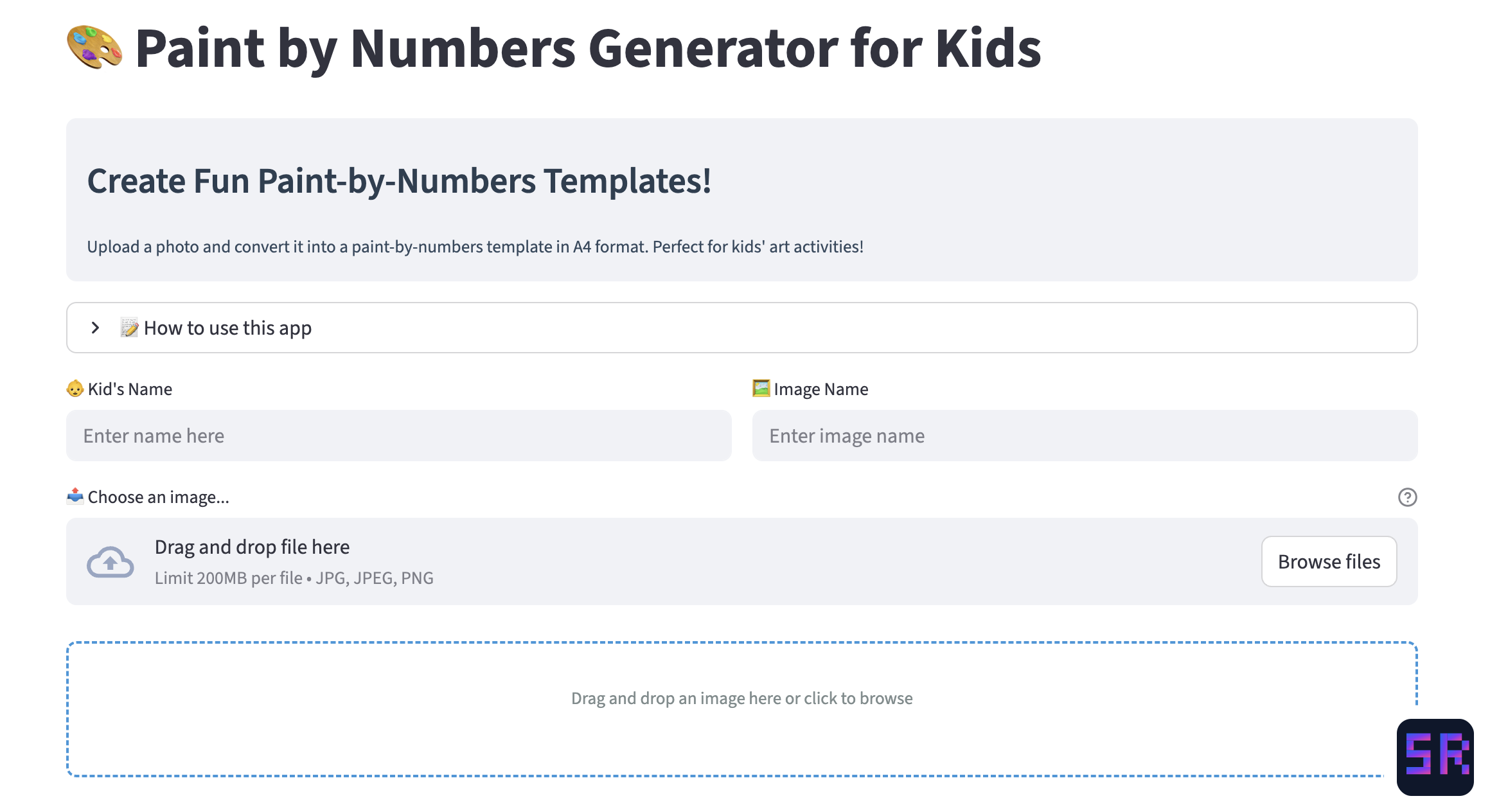
Paint by Numbers Generator
A web app that turns any photo into a printable paint-by-numbers template, complete with numbered regions and a kid-friendly color legend.
Why I Built This
My daughter likes painting. Not the iPad kind - the actual kind, with brushes and water cups that inevitably spill. We’d buy paint-by-numbers kits from the store and she’d work through them in a weekend. The problem was finding ones she actually wanted to paint. The kits are always the same: a lighthouse, a sunset, a horse.
So I figured: the image is just colors and shapes. A photo is already a grid of pixels. If I can reduce the colors down to a handful and draw outlines around the regions, that’s a paint-by-numbers template. How hard could it be?
Harder than I expected, but not impossible.
What It Does
You upload any photo - a family picture, a drawing, an animal, whatever - and the app turns it into a paint-by-numbers template that you can print on A4 paper.
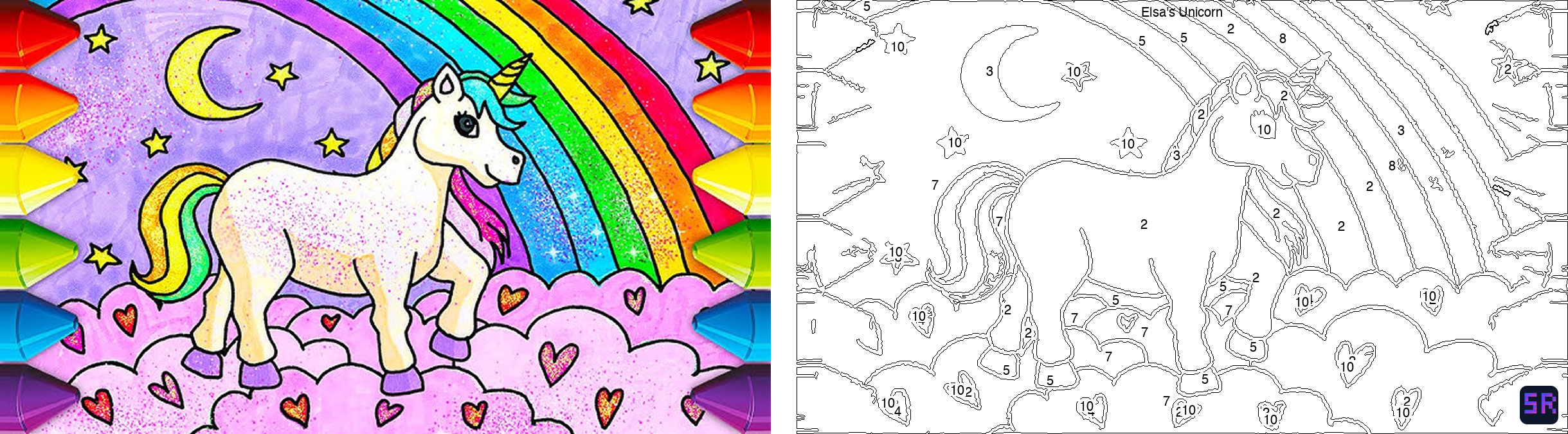 A colorful unicorn image transformed into a printable paint-by-numbers template with numbered regions.
The process works like this: the image gets converted to LAB color space, then K-means clustering groups all the pixels into a set number of colors (configurable, usually somewhere between 6 and 15 depending on how complex you want it). The app finds contours around each color region, draws clean outlines, and places a number inside each region. A color legend at the bottom maps each number to a kid-friendly color name like “Bubblegum Pink” or “Ocean Blue” instead of hex codes.
You can tweak three things:
- Number of colors - fewer colors means simpler, bigger regions. Good for younger kids.
- Simplicity level - controls how much detail the outlines preserve. Higher simplicity smooths things out.
- Minimum region size - filters out tiny regions that would be impossible to paint with a brush.
There’s also a spot to type in a name and the image name, so the template says something like “Elsa’s Painting” at the top. Small thing, but she loves seeing her name on it.
When it’s done, you get a preview on screen and can download it as either a PNG or a printable A4 PDF with the color legend included. Print it, grab some paints, and go.
How It Works Under the Hood
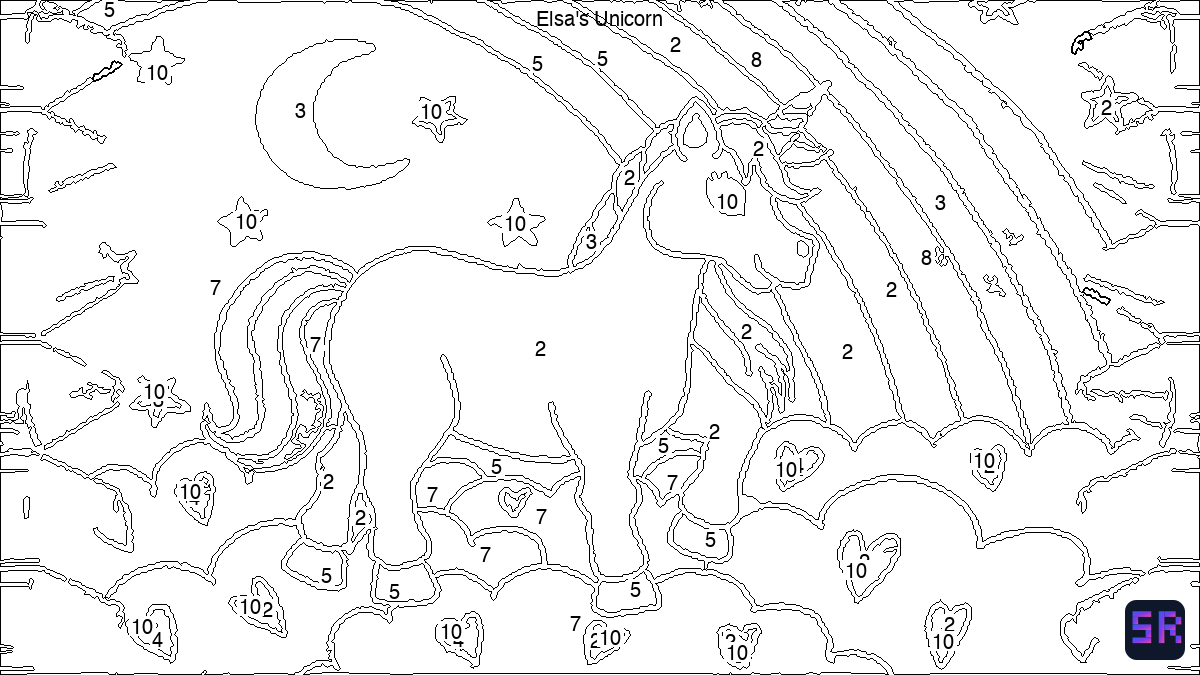 The final template with clean outlines, numbered regions, and “Elsa’s Unicorn” at the top.
The interesting part was the image processing pipeline. A photo has millions of colors, and you need to collapse that down to maybe 10 that are visually distinct and paintable.
The app converts the image to LAB color space first because LAB is perceptually uniform - distances between colors in LAB actually match how different they look to human eyes, which isn’t true in RGB. K-means clustering then groups all the pixels into the target number of colors.
From there, it finds connected regions of each color using OpenCV’s contour detection. The contours get simplified based on the simplicity setting, and tiny regions below the minimum size threshold get absorbed into their neighbors. Each surviving region gets a number placed at its centroid, with some logic to avoid overlapping numbers and keep them inside the region boundaries.
The color naming was a fun detail. Instead of telling a five-year-old to use #2563eb, the app maps each cluster center to the closest kid-friendly name. It handles edge cases like near-black, near-white, and grays separately, then classifies everything else by dominant channel and intensity.
Built with Claude Code
I started this on Replit and got the basic pipeline working, then used Claude Code to iterate on the tricky parts. The number placement logic took a few rounds - early versions would put numbers outside their regions or stack them on top of each other. The contour simplification needed tuning too; too aggressive and you lose recognizable shapes, too conservative and the outlines are jagged and overwhelming.
Claude Code was especially helpful with the OpenCV parts. Contour detection, adaptive thresholding, distance transforms for finding region centers - these are the kinds of things where the API is powerful but the documentation assumes you already know what you’re doing. Describing the visual result I wanted and having Claude Code work through the implementation saved a lot of trial and error.
What She Thinks
She doesn’t care about LAB color space or K-means clustering. She cares that the finished painting actually looks like the photo she picked.
Her favorite part is picking the photo. She’ll scroll through the camera roll looking for the perfect one, which has become its own activity. She also likes that the templates come out different every time depending on the settings - more colors for a challenge, fewer for something quick.
The templates aren’t perfect. Sometimes a region is oddly shaped or a number ends up in a tight spot. But that’s fine. It’s paint-by-numbers, not museum restoration. The bar is “fun afternoon activity,” and it clears that bar every time.
What I’d Do Differently
If I rebuilt it from scratch, I’d probably spend more time on the color palette selection. K-means gives you the mathematically optimal clusters, but those aren’t always the most paintable colors. Sometimes you end up with two shades of brown that are hard to tell apart on a palette. A post-processing step that ensures minimum perceptual distance between all colors would help.
I’d also like to add difficulty presets - “easy” for ages 3-5 (big regions, few colors), “medium” for ages 6-8, and “detailed” for older kids or adults. Right now you have to know which sliders to adjust, and the right settings aren’t obvious if you’re not the person who built it.
But it works. It does the thing. And honestly, watching her paint something she chose, on a template I made, with her name printed at the top - that’s the whole point.